# Manage team members
This topic describes how to manage team members in the Replicated Vendor Portal, such as inviting and removing members, and editing permissions. For information about managing user access to the Replicated collab repository in GitHub, see [Manage Collab Repository Access](team-management-github-username).
## Viewing team members
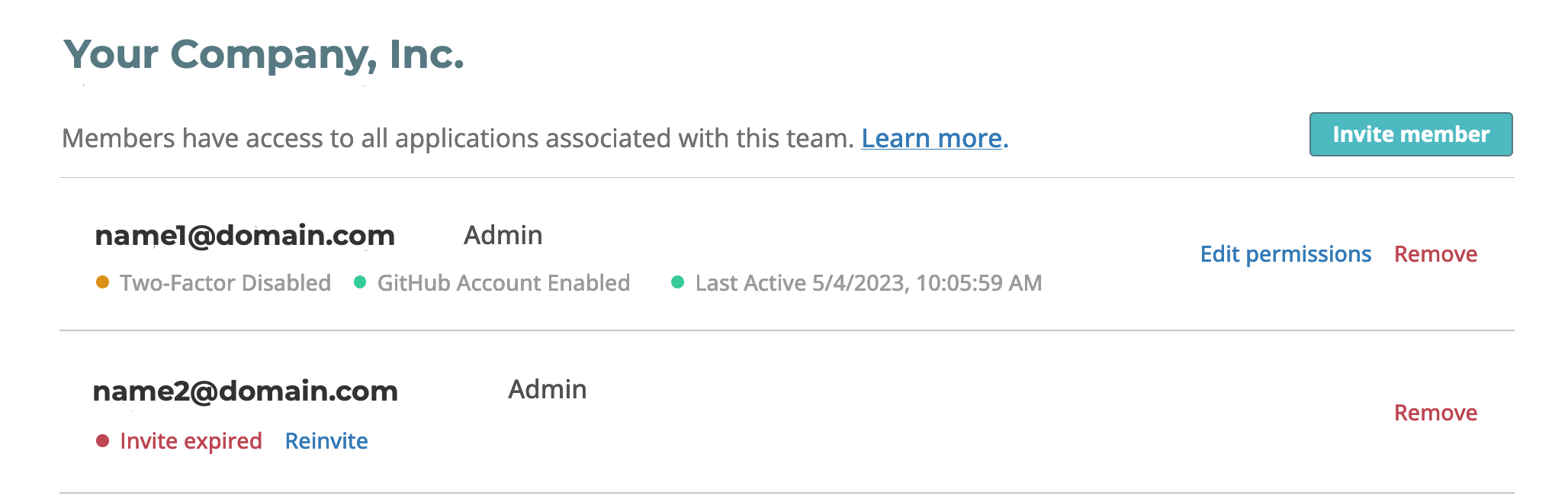
The [Team](https://vendor.replicated.com/team/members) page provides a list of all accounts associated with or invited to your team. Each row contains information about the user, including their two-factor authentication (2FA) status and role-based access control (RBAC) role. Administrators can also take actions such as removing, re-inviting, and editing permissions.
 [View a larger image](/images/teams-view.png)
All users, including read-only, can see the name of the RBAC role assigned to each team member. When the team enables SAML authentication, users with the built-in read-only policy cannot see the RBAC role assigned to team members.
### SCIM
You can enable System for Cross-domain Identity Management (SCIM) for automated provisioning and deprovisioning. SCIM requires that you configure SAML first. For more information, see [Manage SCIM Provisioning (Beta)](team-management-scim-provisioning).
## Invite members
By default, team administrators can invite more team members to collaborate. Invited users receive an email to activate their account. The activation link in the email is unique to the invited user. Following the activation link in the email also ensures that the invited user joins the team from which the invitation originated.
:::note
Teams that have enforced SAML-only authentication do not use the email invitation flow described in this procedure. These teams and their users must log in through their SAML provider.
:::
To invite a new team member:
1. From the [Team Members](https://vendor.replicated.com/team/members) page, click **Invite team member**.
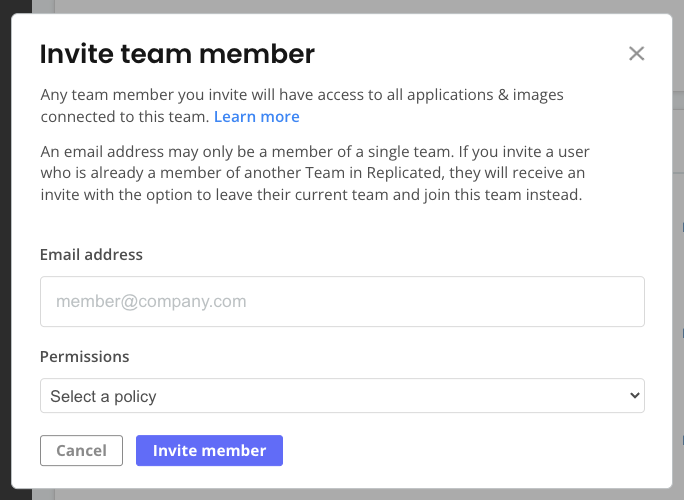
The Invite team member dialog opens.
[View a larger image](/images/teams-view.png)
All users, including read-only, can see the name of the RBAC role assigned to each team member. When the team enables SAML authentication, users with the built-in read-only policy cannot see the RBAC role assigned to team members.
### SCIM
You can enable System for Cross-domain Identity Management (SCIM) for automated provisioning and deprovisioning. SCIM requires that you configure SAML first. For more information, see [Manage SCIM Provisioning (Beta)](team-management-scim-provisioning).
## Invite members
By default, team administrators can invite more team members to collaborate. Invited users receive an email to activate their account. The activation link in the email is unique to the invited user. Following the activation link in the email also ensures that the invited user joins the team from which the invitation originated.
:::note
Teams that have enforced SAML-only authentication do not use the email invitation flow described in this procedure. These teams and their users must log in through their SAML provider.
:::
To invite a new team member:
1. From the [Team Members](https://vendor.replicated.com/team/members) page, click **Invite team member**.
The Invite team member dialog opens.
 [Invite team member dialog](/images/teams-invite-member.png)
1. Enter the email address of the member.
1. In the **Permissions** field, assign an RBAC policy from the dropdown list.
:::important
The RBAC policy that you specify also determines the level of access that the user has to the Replicated collab repository in GitHub. By default, the Read Only policy grants the user read access to the collab repository.
For more information about managing user access to the collab repository from the Vendor Portal, see [Manage Access to the Collab Repository](team-management-github-username).
:::
1. Click **Invite member**.
People invited to join your team receive an email notification to accept the invitation. They must follow the link in the email to accept the invitation and join the team. If they do not have a Replicated account already, they can create one that complies with your password policies, 2FA, and Google authentication requirements. If an invited user's email address is already associated with a Replicated account, accepting your invitation automatically moves them to your team.
## Managing invitations
Invitations expire after 7 days. If a prospective member has not accepted their invitation in this time frame, you can re-invite them without having to reenter their details. You can also remove the prospective member from the list.
You must be an administrator to perform this action.
To re-invite or remove a prospective member, do one of the following on the **Team Members** page:
* Click **Reinvite** from the row with the user's email address, and then click **Reinvite** in the confirmation dialog.
* Click **Remove** from the row with the user's email address, and then click **Delete Invitation** in the confirmation dialog.
## Edit policy permissions
You can edit the RBAC policy assigned to a member at any time.
:::important
The RBAC policy that you specify also determines the level of access that the user has to the Replicated collab repository in GitHub. By default, the Read Only policy grants the user read access to the collab repository.
For more information about managing user access to the collab repository from the Vendor Portal, see [Manage Access to the Collab Repository](team-management-github-username).
:::
To edit policy permissions for individual team members:
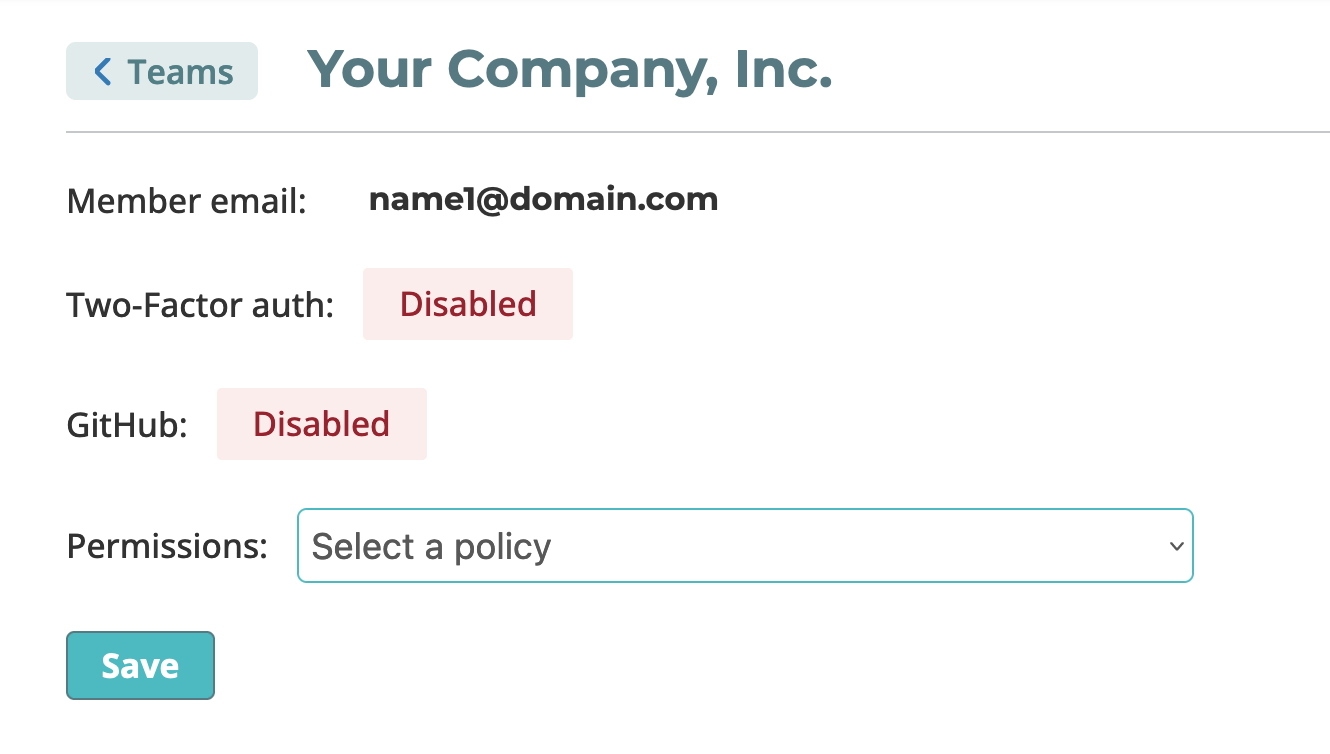
1. From the Team Members list, click **Edit permissions** for the member.
:::note
The two-factor authentication (2FA) status displays on the **Team members** page, but it is not configured on this page. For more information about configuring 2FA, see [Manage Two-Factor Authentication](team-management-two-factor-auth).
:::
1. Select an RBAC policy from the **Permissions** dropdown list, and click **Save**. For information about configuring the RBAC policies that display in this list, see [Configure RBAC Policies](team-management-rbac-configuring).
[Invite team member dialog](/images/teams-invite-member.png)
1. Enter the email address of the member.
1. In the **Permissions** field, assign an RBAC policy from the dropdown list.
:::important
The RBAC policy that you specify also determines the level of access that the user has to the Replicated collab repository in GitHub. By default, the Read Only policy grants the user read access to the collab repository.
For more information about managing user access to the collab repository from the Vendor Portal, see [Manage Access to the Collab Repository](team-management-github-username).
:::
1. Click **Invite member**.
People invited to join your team receive an email notification to accept the invitation. They must follow the link in the email to accept the invitation and join the team. If they do not have a Replicated account already, they can create one that complies with your password policies, 2FA, and Google authentication requirements. If an invited user's email address is already associated with a Replicated account, accepting your invitation automatically moves them to your team.
## Managing invitations
Invitations expire after 7 days. If a prospective member has not accepted their invitation in this time frame, you can re-invite them without having to reenter their details. You can also remove the prospective member from the list.
You must be an administrator to perform this action.
To re-invite or remove a prospective member, do one of the following on the **Team Members** page:
* Click **Reinvite** from the row with the user's email address, and then click **Reinvite** in the confirmation dialog.
* Click **Remove** from the row with the user's email address, and then click **Delete Invitation** in the confirmation dialog.
## Edit policy permissions
You can edit the RBAC policy assigned to a member at any time.
:::important
The RBAC policy that you specify also determines the level of access that the user has to the Replicated collab repository in GitHub. By default, the Read Only policy grants the user read access to the collab repository.
For more information about managing user access to the collab repository from the Vendor Portal, see [Manage Access to the Collab Repository](team-management-github-username).
:::
To edit policy permissions for individual team members:
1. From the Team Members list, click **Edit permissions** for the member.
:::note
The two-factor authentication (2FA) status displays on the **Team members** page, but it is not configured on this page. For more information about configuring 2FA, see [Manage Two-Factor Authentication](team-management-two-factor-auth).
:::
1. Select an RBAC policy from the **Permissions** dropdown list, and click **Save**. For information about configuring the RBAC policies that display in this list, see [Configure RBAC Policies](team-management-rbac-configuring).
 ## Enable users to auto-join your team
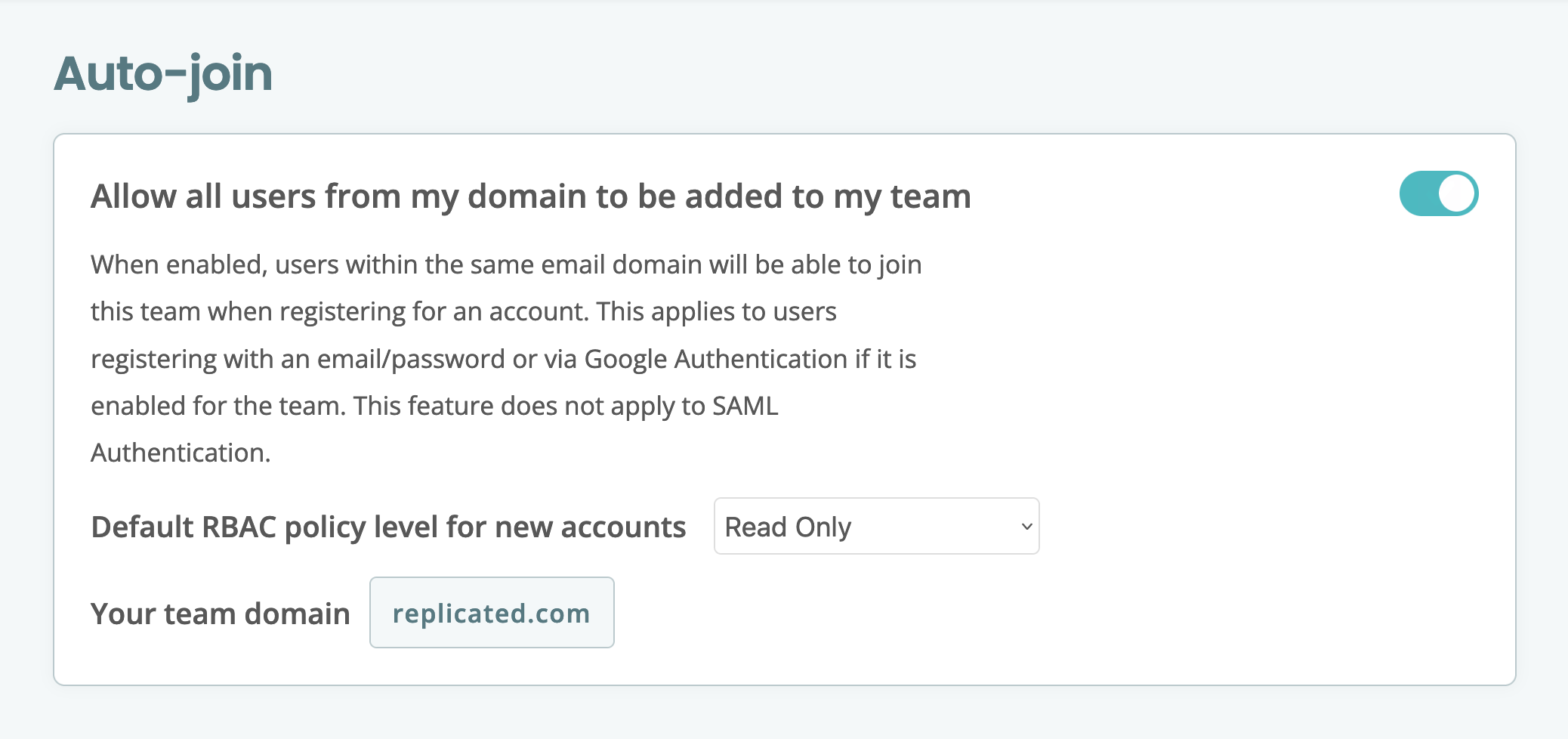
By default, users must receive an invitation to join your team. Team administrators can use the auto-join feature to allow users from the same email domain to join their team automatically. This applies to users registering with an email, or with Google authentication if the team enables it. The auto-join feature does not apply to SAML authentication because SAML users log in through their SAML provider's portal.
To add, edit, or delete custom RBAC policies, see [Configure RBAC Policies](team-management-rbac-configuring).
To enable users to auto-join your team:
1. From the Team Members page, click **Auto-join** in the navigation menu.
1. Enable the **Allow all users from my domain to be added to my team** toggle.
## Enable users to auto-join your team
By default, users must receive an invitation to join your team. Team administrators can use the auto-join feature to allow users from the same email domain to join their team automatically. This applies to users registering with an email, or with Google authentication if the team enables it. The auto-join feature does not apply to SAML authentication because SAML users log in through their SAML provider's portal.
To add, edit, or delete custom RBAC policies, see [Configure RBAC Policies](team-management-rbac-configuring).
To enable users to auto-join your team:
1. From the Team Members page, click **Auto-join** in the navigation menu.
1. Enable the **Allow all users from my domain to be added to my team** toggle.
 [View a larger image](/images/teams-auto-join.png)
1. For **Default RBAC policy level for new accounts**, you can use the default Read Only policy or select another policy from the list. This RBAC policy applies to all users who join the team with the auto-join feature.
:::important
The RBAC policy that you specify also determines the level of access that the user has to the Replicated collab repository in GitHub. By default, the Read Only policy grants the user read access to the collab repository.
For more information about managing user access to the collab repository from the Vendor Portal, see [Manage Access to the Collab Repository](team-management-github-username).
:::
## Remove members and end sessions
As a Vendor Portal team admin, you can remove team members, except for your own account.
If the removed team member added their GitHub username in the Vendor Portal, the Vendor Portal also removes their username from the collab repository. For more information, see [Manage Access to the Collab Repository](team-management-github-username).
If you have not enabled SCIM, remove SAML-created users using this method to end their existing sessions. If you have enabled SCIM, deprovision the user from your identity provider to deactivate the account in Replicated.
To remove a member:
1. From the Team Members page, click **Remove** in a user's row.
1. Click **Remove** in the confirmation dialog.
Replicated removes the member. All their current sessions end, and their next server request logs them out of their browser session.
If the member added their GitHub username to the Vendor Portal, the Vendor Portal also removes their GitHub username from the collab repository. For more information, see [Manage Collab Repository Access](team-management-github-username).
For Google-authenticated users, if Google suspends or deletes the user's account, Replicated ends all their Vendor Portal sessions within 10 minutes. The user remains in the team list but cannot log in unless you enable username and password login.
## Update email addresses
:::important
Changing team member email addresses has security implications. Replicated advises that you avoid changing team member email addresses if possible.
:::
Updating the email address for a team member requires creating a new account with the updated email address, and then deactivating the previous account.
To update the email address for a team member:
1. From the Team Members page, click **Invite team member**.
1. Assign the required RBAC policies to the new user.
1. Deactivate the previous team member account.
[View a larger image](/images/teams-auto-join.png)
1. For **Default RBAC policy level for new accounts**, you can use the default Read Only policy or select another policy from the list. This RBAC policy applies to all users who join the team with the auto-join feature.
:::important
The RBAC policy that you specify also determines the level of access that the user has to the Replicated collab repository in GitHub. By default, the Read Only policy grants the user read access to the collab repository.
For more information about managing user access to the collab repository from the Vendor Portal, see [Manage Access to the Collab Repository](team-management-github-username).
:::
## Remove members and end sessions
As a Vendor Portal team admin, you can remove team members, except for your own account.
If the removed team member added their GitHub username in the Vendor Portal, the Vendor Portal also removes their username from the collab repository. For more information, see [Manage Access to the Collab Repository](team-management-github-username).
If you have not enabled SCIM, remove SAML-created users using this method to end their existing sessions. If you have enabled SCIM, deprovision the user from your identity provider to deactivate the account in Replicated.
To remove a member:
1. From the Team Members page, click **Remove** in a user's row.
1. Click **Remove** in the confirmation dialog.
Replicated removes the member. All their current sessions end, and their next server request logs them out of their browser session.
If the member added their GitHub username to the Vendor Portal, the Vendor Portal also removes their GitHub username from the collab repository. For more information, see [Manage Collab Repository Access](team-management-github-username).
For Google-authenticated users, if Google suspends or deletes the user's account, Replicated ends all their Vendor Portal sessions within 10 minutes. The user remains in the team list but cannot log in unless you enable username and password login.
## Update email addresses
:::important
Changing team member email addresses has security implications. Replicated advises that you avoid changing team member email addresses if possible.
:::
Updating the email address for a team member requires creating a new account with the updated email address, and then deactivating the previous account.
To update the email address for a team member:
1. From the Team Members page, click **Invite team member**.
1. Assign the required RBAC policies to the new user.
1. Deactivate the previous team member account.