# Perform updates in existing clusters
This topic describes how to perform updates in existing cluster installations with Replicated KOTS. It includes information about how to update applications and the version of KOTS running in the cluster.
It also includes information about how the Admin Console determines version precendence. See [How the Admin Console Determines Version Precendence](/enterprise/updating-app-manager#how-the-admin-console-determines-version-precedence).
## Update an application
You can perform an application update using the KOTS Admin Console or the KOTS CLI. You can also set up automatic updates. See [Configure Automatic Updates](/enterprise/updating-apps).
### Using the Admin Console
#### Online environments
To perform an update from the Admin Console:
1. In the Admin Console, go to the **Version History** tab.
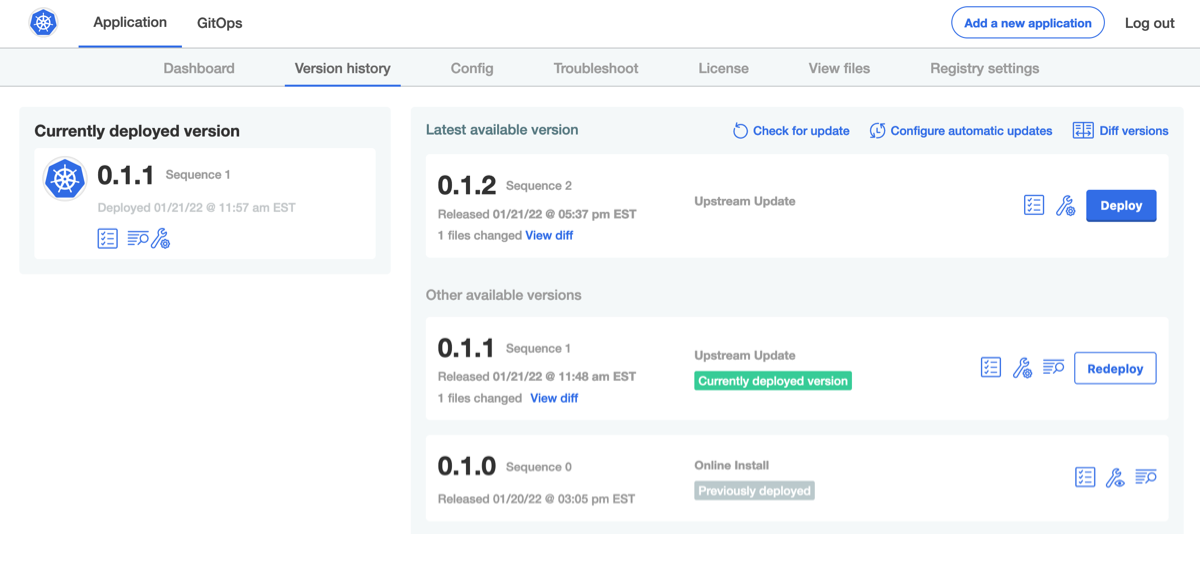
1. Click **Check for updates**.
A new upstream version displays in the list of available versions.
 [View a larger version of this image](/images/new-version-available.png)
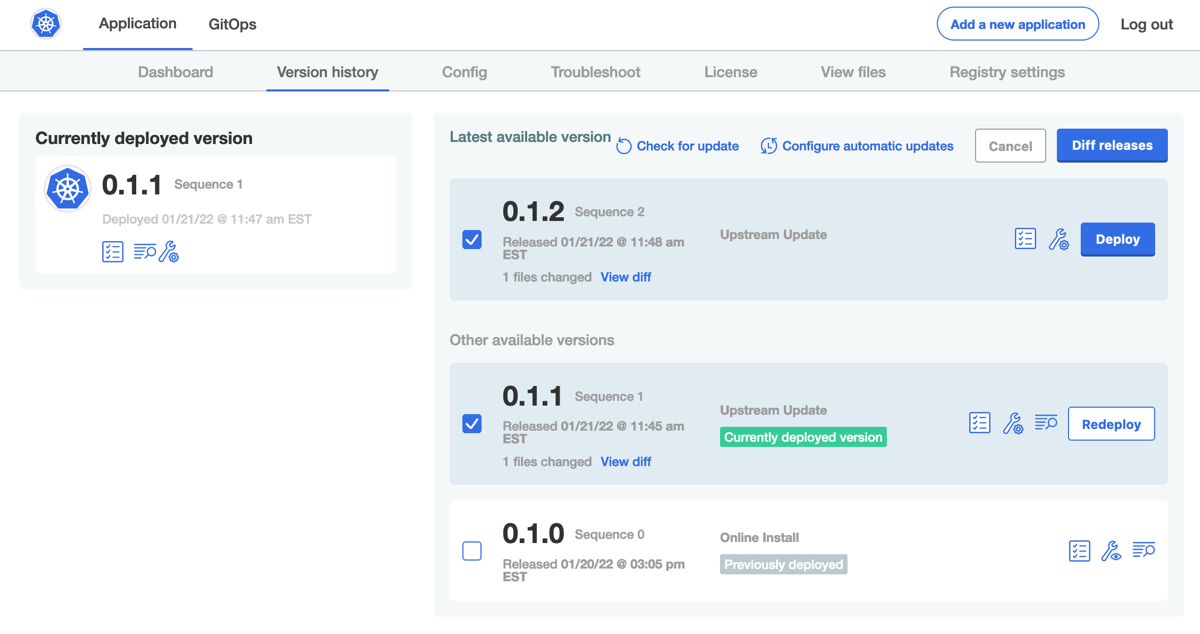
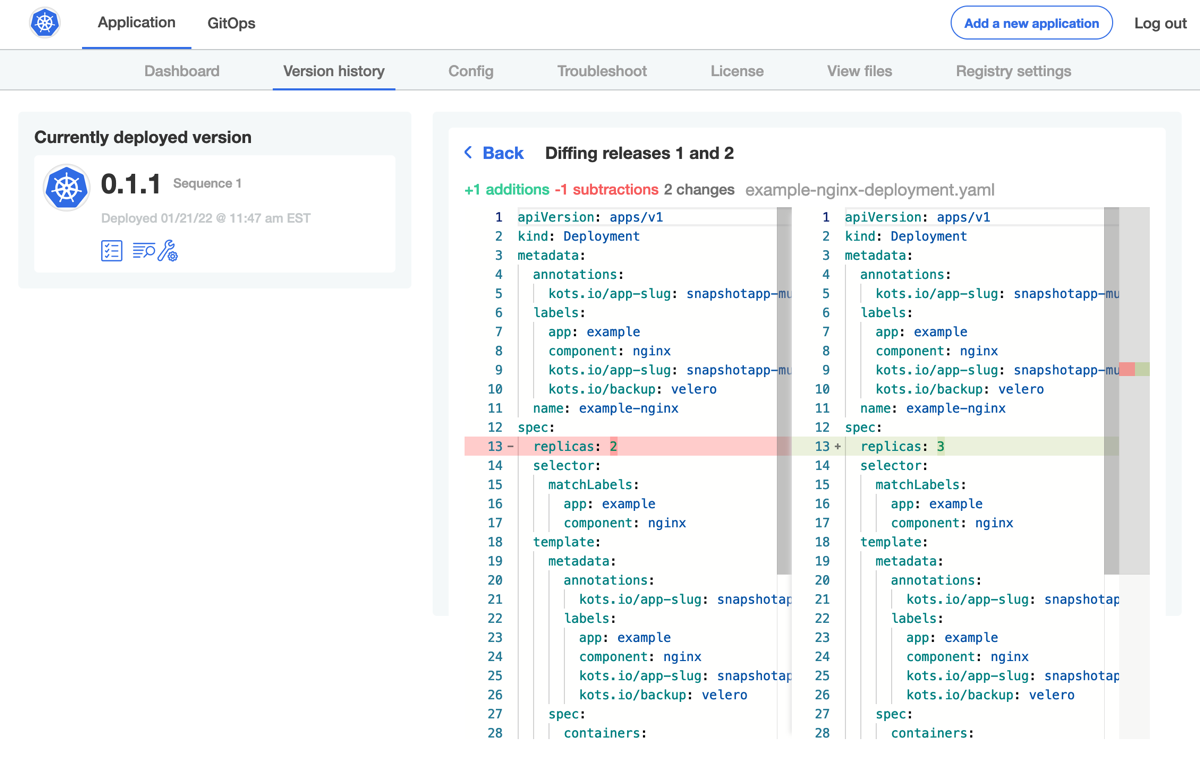
1. (Optional) When there are multiple versions of an application, you can compare
the changes between them by clicking **Diff releases** in the right corner.
You can review changes between any two arbitrary releases by clicking the icon in the header
of the release column. Select the two versions to compare, and click **Diff releases**
to show the relative changes between the two releases.
[View a larger version of this image](/images/new-version-available.png)
1. (Optional) When there are multiple versions of an application, you can compare
the changes between them by clicking **Diff releases** in the right corner.
You can review changes between any two arbitrary releases by clicking the icon in the header
of the release column. Select the two versions to compare, and click **Diff releases**
to show the relative changes between the two releases.
 [View a larger version of this image](/images/diff-releases.png)
 [View a larger version of this image](/images/new-changes.png)
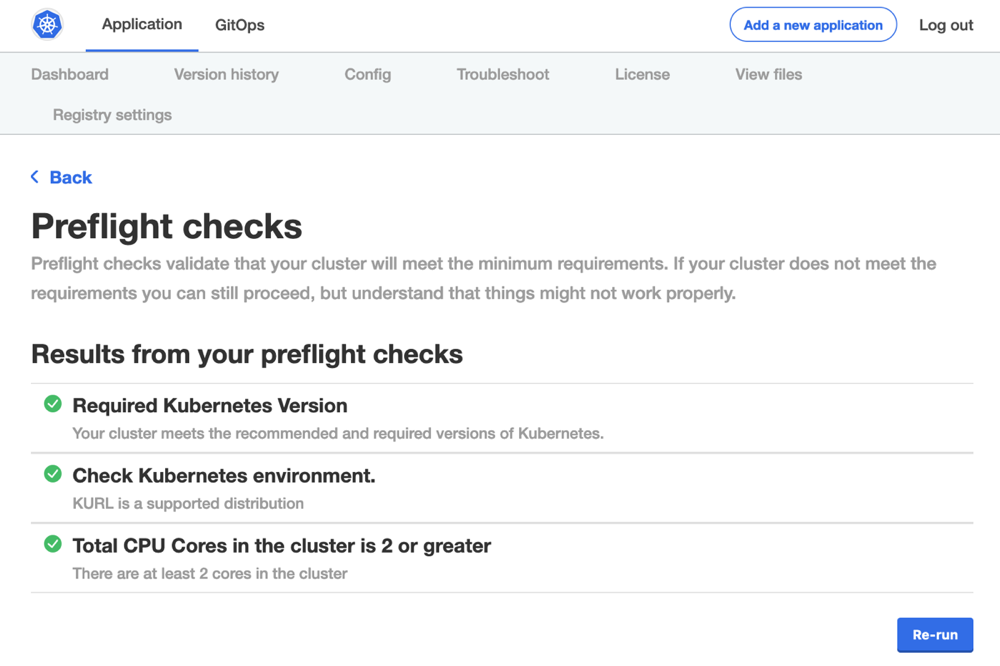
1. (Optional) Click the **View preflight checks** icon to view or re-run the preflight checks.
[View a larger version of this image](/images/new-changes.png)
1. (Optional) Click the **View preflight checks** icon to view or re-run the preflight checks.
 [View a larger version of this image](/images/preflight-checks.png)
1. Return to the **Version History** tab and click **Deploy** next to the target version.
#### Air gap environments
import BuildAirGapBundle from "../install/_airgap-bundle-build.mdx"
import DownloadAirGapBundle from "../install/_airgap-bundle-download.mdx"
import ViewAirGapBundle from "../install/_airgap-bundle-view-contents.mdx"
To perform an air gap update from the Admin Console:
1. In the [Vendor Portal](https://vendor.replicated.com), go the channel where the target release is promoted to build and download the new `.airgap` bundle:
* If the **Automatically create airgap builds for newly promoted releases in this channel** setting is enabled on the channel, watch for the build status to complete.
* If automatic air gap builds are not enabled, go to the **Release history** page for the channel and build the air gap bundle manually.
[View a larger version of this image](/images/preflight-checks.png)
1. Return to the **Version History** tab and click **Deploy** next to the target version.
#### Air gap environments
import BuildAirGapBundle from "../install/_airgap-bundle-build.mdx"
import DownloadAirGapBundle from "../install/_airgap-bundle-download.mdx"
import ViewAirGapBundle from "../install/_airgap-bundle-view-contents.mdx"
To perform an air gap update from the Admin Console:
1. In the [Vendor Portal](https://vendor.replicated.com), go the channel where the target release is promoted to build and download the new `.airgap` bundle:
* If the **Automatically create airgap builds for newly promoted releases in this channel** setting is enabled on the channel, watch for the build status to complete.
* If automatic air gap builds are not enabled, go to the **Release history** page for the channel and build the air gap bundle manually.
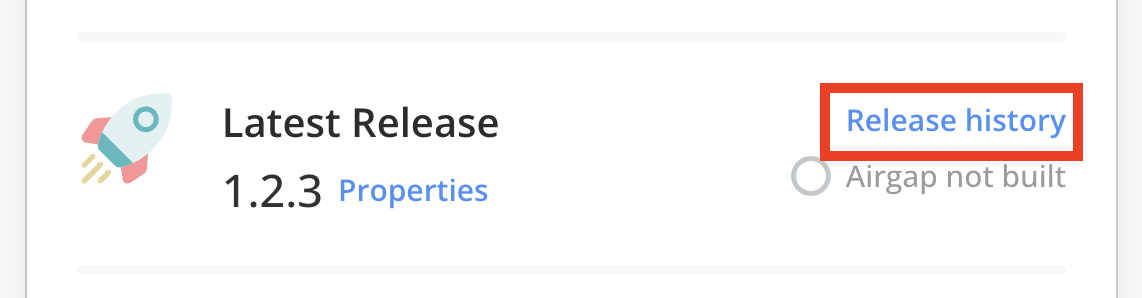 [View a larger version of this image](/images/release-history-link.png)

[View a larger version of this image](/images/release-history-build-airgap-bundle.png)
1.
1.
1. In the Admin Console, go to the **Version History** tab.
1. Click **Upload a new version**.
A new upstream version displays in the list of available versions.

1. (Optional) When there are multiple versions of an application, you can compare
the changes between them by clicking **Diff releases** in the right corner.
You can review changes between any two arbitrary releases by clicking the icon in the header
of the release column. Select the two versions to compare, and click **Diff releases**
to show the relative changes between the two releases.


1. (Optional) Click the **View preflight checks** icon to view or re-run the preflight checks.

1. Return to the **Version History** tab and click **Deploy** next to the target version.
### Using the KOTS CLI
You can use the KOTS CLI [upstream upgrade](/reference/kots-cli-upstream-upgrade) command to update an application in existing cluster installations.
#### Online environments
To update an application in online environments:
```bash
kubectl kots upstream upgrade APP_SLUG -n ADMIN_CONSOLE_NAMESPACE
```
Where:
* `APP_SLUG` is the unique slug for the application. See [Get the Application Slug](/vendor/vendor-portal-manage-app#slug) in _Managing Applications_.
* `ADMIN_CONSOLE_NAMESPACE` is the namespace where the Admin Console is running.
:::note
Add the `--deploy` flag to automatically deploy this version.
:::
#### Air gap environments
To update an application in air gap environments:
1. In the [Vendor Portal](https://vendor.replicated.com), go the channel where the target release is promoted to build and download the new `.airgap` bundle:
* If the **Automatically create airgap builds for newly promoted releases in this channel** setting is enabled on the channel, watch for the build status to complete.
* If automatic air gap builds are not enabled, go to the **Release history** page for the channel and build the air gap bundle manually.
[View a larger version of this image](/images/release-history-link.png)

[View a larger version of this image](/images/release-history-build-airgap-bundle.png)
1.
1.
1. Run the following command to update the application:
```bash
kubectl kots upstream upgrade APP_SLUG \
--airgap-bundle NEW_AIRGAP_BUNDLE \
--kotsadm-registry REGISTRY_HOST[/REGISTRY_NAMESPACE] \
--registry-username RO_USERNAME \
--registry-password RO_PASSWORD \
-n ADMIN_CONSOLE_NAMESPACE
```
Replace:
* `APP_SLUG` with the unique slug for the application. See [Get the Application Slug](/vendor/vendor-portal-manage-app#slug) in _Managing Applications_.
* `NEW_AIRGAP_BUNDLE` with the `.airgap` bundle for the target application version.
* `REGISTRY_HOST` with the private registry that contains the Admin Console images.
* `REGISTRY_NAMESPACE` with the registry namespace where the images are hosted (Optional).
* `RO_USERNAME` and `RO_PASSWORD` with the username and password for an account that has read-only access to the private registry.
* `ADMIN_CONSOLE_NAMESPACE` with the namespace where the Admin Console is running.
:::note
Add the `--deploy` flag to automatically deploy this version.
:::
## Update KOTS
This section describes how to update the version of Replicated KOTS running in your cluster. For information about the latest versions of KOTS, see [KOTS Release Notes](/release-notes/rn-app-manager).
:::note
Downgrading KOTS to a version earlier than what is currently deployed is not supported.
:::
### Online environments
To update KOTS in an online existing cluster:
1. Run _one_ of the following commands to update the KOTS CLI to the target version of KOTS:
- **Install or update to the latest version**:
```
curl https://kots.io/install | bash
```
- **Install or update to a specific version**:
```
curl https://kots.io/install/VERSION | bash
```
Where `VERSION` is the target KOTS version.
For more KOTS CLI installation options, including information about how to install or update without root access, see [Install the KOTS CLI](/reference/kots-cli-getting-started).
1. Run the following command to update the KOTS Admin Console to the same version as the KOTS CLI:
```bash
kubectl kots admin-console upgrade -n NAMESPACE
```
Replace `NAMESPACE` with the namespace in your cluster where KOTS is installed.
### Air gap environments
To update KOTS in an existing air gap cluster:
1. Download the target version of the following assets from the [Releases](https://github.com/replicatedhq/kots/releases/latest) page in the KOTS GitHub repository:
* KOTS Admin Console `kotsadm.tar.gz` bundle
* KOTS CLI plugin
Ensure that you can access the downloaded bundles from the environment where the Admin Console is running.
1. Install or update the KOTS CLI to the version that you downloaded. See [Manually Download and Install](/reference/kots-cli-getting-started#manually-download-and-install) in _Installing the KOTS CLI_.
1.
1. Run the following command using registry read-only credentials to update the KOTS Admin Console:
```
kubectl kots admin-console upgrade \
--kotsadm-registry REGISTRY_HOST \
--registry-username RO_USERNAME \
--registry-password RO_PASSWORD \
-n NAMESPACE
```
Replace:
* `REGISTRY_HOST` with the same private registry from the previous step.
* `RO_USERNAME` with the username for credentials with read-only permissions to the registry.
* `RO_PASSWORD` with the password associated with the username.
* `NAMESPACE` with the namespace on your cluster where KOTS is installed.
For help information, run `kubectl kots admin-console upgrade -h`.
## How the Admin Console determines version precedence
The Admin Console uses version precedence to determine which versions are available for upgrade. Version precedence also determines the order in which versions are displayed on the **Version history** page, as shown in the example below:

[View a larger version of this image](/images/new-version-available.png)
The Admin Console uses the following logic to determine version precendence:
* For channels _without_ semantic versioning (SemVer) enabled, the Admin Console sequences releases by their promotion dates and times. For example, if you promote a release with version label abc at 10:00am, and then promote a release with version label xyz at 10:15am, then version xyz has higher precedence (abc < xyz).
* For channels _with_ SemVer enabled, the Admin Console sequences releases by their semantic version. For information about how precedence is determined in SemVer, see [11.
Precedence refers to how versions are compared to each other when ordered](https://semver.org/#spec-item-11) in the Semantic Versioning 2.0.0 documentation.
The following shows an example of version precendence in SemVer when pre-release fields are used:
- 2.13.0
- 2.12.1
- 2.12.0
- 2.12.0-2
- 2.12.0-1
- 2.11.0
:::note
Build metadata in the semantic version string is ignored when determining version precedence. For example, the Admin Console interprets 2.12.0, 2.12.0+1, and 2.12.0+2 as the same version. Instead of using build metadata in your semantic version labels, Replicated recommends that you increment the patch version. Or, use pre-release identifiers. For example, 1.0.0-alpha or 1.0.0-1.
:::
* For channels with SemVer enabled where there are one or more releases that do _not_ use SemVer, the Admin Console determines precedence based on the semantic version when possible. The release(s) with non-semantic versions stay in the order of their promotion dates.
For example, assume that you promote these releases in the following order to a channel without SemVer enabled:
- 1.0.0 promoted at 10:00 AM
- abc promoted at 10:15 AM
- 0.1.0 promoted at 10:30 AM
- xyz promoted at 10:45 AM
- 2.0.0 promoted at 11:00 AM
Then, you enable SemVer on that channel. The Admin Console assigns precedence as follows: 0.1.0 < 1.0.0 < abc < xyz < 2.0.0.
[View a larger version of this image](/images/release-history-link.png)

[View a larger version of this image](/images/release-history-build-airgap-bundle.png)
1.
1.
1. In the Admin Console, go to the **Version History** tab.
1. Click **Upload a new version**.
A new upstream version displays in the list of available versions.

1. (Optional) When there are multiple versions of an application, you can compare
the changes between them by clicking **Diff releases** in the right corner.
You can review changes between any two arbitrary releases by clicking the icon in the header
of the release column. Select the two versions to compare, and click **Diff releases**
to show the relative changes between the two releases.


1. (Optional) Click the **View preflight checks** icon to view or re-run the preflight checks.

1. Return to the **Version History** tab and click **Deploy** next to the target version.
### Using the KOTS CLI
You can use the KOTS CLI [upstream upgrade](/reference/kots-cli-upstream-upgrade) command to update an application in existing cluster installations.
#### Online environments
To update an application in online environments:
```bash
kubectl kots upstream upgrade APP_SLUG -n ADMIN_CONSOLE_NAMESPACE
```
Where:
* `APP_SLUG` is the unique slug for the application. See [Get the Application Slug](/vendor/vendor-portal-manage-app#slug) in _Managing Applications_.
* `ADMIN_CONSOLE_NAMESPACE` is the namespace where the Admin Console is running.
:::note
Add the `--deploy` flag to automatically deploy this version.
:::
#### Air gap environments
To update an application in air gap environments:
1. In the [Vendor Portal](https://vendor.replicated.com), go the channel where the target release is promoted to build and download the new `.airgap` bundle:
* If the **Automatically create airgap builds for newly promoted releases in this channel** setting is enabled on the channel, watch for the build status to complete.
* If automatic air gap builds are not enabled, go to the **Release history** page for the channel and build the air gap bundle manually.
[View a larger version of this image](/images/release-history-link.png)

[View a larger version of this image](/images/release-history-build-airgap-bundle.png)
1.
1.
1. Run the following command to update the application:
```bash
kubectl kots upstream upgrade APP_SLUG \
--airgap-bundle NEW_AIRGAP_BUNDLE \
--kotsadm-registry REGISTRY_HOST[/REGISTRY_NAMESPACE] \
--registry-username RO_USERNAME \
--registry-password RO_PASSWORD \
-n ADMIN_CONSOLE_NAMESPACE
```
Replace:
* `APP_SLUG` with the unique slug for the application. See [Get the Application Slug](/vendor/vendor-portal-manage-app#slug) in _Managing Applications_.
* `NEW_AIRGAP_BUNDLE` with the `.airgap` bundle for the target application version.
* `REGISTRY_HOST` with the private registry that contains the Admin Console images.
* `REGISTRY_NAMESPACE` with the registry namespace where the images are hosted (Optional).
* `RO_USERNAME` and `RO_PASSWORD` with the username and password for an account that has read-only access to the private registry.
* `ADMIN_CONSOLE_NAMESPACE` with the namespace where the Admin Console is running.
:::note
Add the `--deploy` flag to automatically deploy this version.
:::
## Update KOTS
This section describes how to update the version of Replicated KOTS running in your cluster. For information about the latest versions of KOTS, see [KOTS Release Notes](/release-notes/rn-app-manager).
:::note
Downgrading KOTS to a version earlier than what is currently deployed is not supported.
:::
### Online environments
To update KOTS in an online existing cluster:
1. Run _one_ of the following commands to update the KOTS CLI to the target version of KOTS:
- **Install or update to the latest version**:
```
curl https://kots.io/install | bash
```
- **Install or update to a specific version**:
```
curl https://kots.io/install/VERSION | bash
```
Where `VERSION` is the target KOTS version.
For more KOTS CLI installation options, including information about how to install or update without root access, see [Install the KOTS CLI](/reference/kots-cli-getting-started).
1. Run the following command to update the KOTS Admin Console to the same version as the KOTS CLI:
```bash
kubectl kots admin-console upgrade -n NAMESPACE
```
Replace `NAMESPACE` with the namespace in your cluster where KOTS is installed.
### Air gap environments
To update KOTS in an existing air gap cluster:
1. Download the target version of the following assets from the [Releases](https://github.com/replicatedhq/kots/releases/latest) page in the KOTS GitHub repository:
* KOTS Admin Console `kotsadm.tar.gz` bundle
* KOTS CLI plugin
Ensure that you can access the downloaded bundles from the environment where the Admin Console is running.
1. Install or update the KOTS CLI to the version that you downloaded. See [Manually Download and Install](/reference/kots-cli-getting-started#manually-download-and-install) in _Installing the KOTS CLI_.
1.
1. Run the following command using registry read-only credentials to update the KOTS Admin Console:
```
kubectl kots admin-console upgrade \
--kotsadm-registry REGISTRY_HOST \
--registry-username RO_USERNAME \
--registry-password RO_PASSWORD \
-n NAMESPACE
```
Replace:
* `REGISTRY_HOST` with the same private registry from the previous step.
* `RO_USERNAME` with the username for credentials with read-only permissions to the registry.
* `RO_PASSWORD` with the password associated with the username.
* `NAMESPACE` with the namespace on your cluster where KOTS is installed.
For help information, run `kubectl kots admin-console upgrade -h`.
## How the Admin Console determines version precedence
The Admin Console uses version precedence to determine which versions are available for upgrade. Version precedence also determines the order in which versions are displayed on the **Version history** page, as shown in the example below:

[View a larger version of this image](/images/new-version-available.png)
The Admin Console uses the following logic to determine version precendence:
* For channels _without_ semantic versioning (SemVer) enabled, the Admin Console sequences releases by their promotion dates and times. For example, if you promote a release with version label abc at 10:00am, and then promote a release with version label xyz at 10:15am, then version xyz has higher precedence (abc < xyz).
* For channels _with_ SemVer enabled, the Admin Console sequences releases by their semantic version. For information about how precedence is determined in SemVer, see [11.
Precedence refers to how versions are compared to each other when ordered](https://semver.org/#spec-item-11) in the Semantic Versioning 2.0.0 documentation.
The following shows an example of version precendence in SemVer when pre-release fields are used:
- 2.13.0
- 2.12.1
- 2.12.0
- 2.12.0-2
- 2.12.0-1
- 2.11.0
:::note
Build metadata in the semantic version string is ignored when determining version precedence. For example, the Admin Console interprets 2.12.0, 2.12.0+1, and 2.12.0+2 as the same version. Instead of using build metadata in your semantic version labels, Replicated recommends that you increment the patch version. Or, use pre-release identifiers. For example, 1.0.0-alpha or 1.0.0-1.
:::
* For channels with SemVer enabled where there are one or more releases that do _not_ use SemVer, the Admin Console determines precedence based on the semantic version when possible. The release(s) with non-semantic versions stay in the order of their promotion dates.
For example, assume that you promote these releases in the following order to a channel without SemVer enabled:
- 1.0.0 promoted at 10:00 AM
- abc promoted at 10:15 AM
- 0.1.0 promoted at 10:30 AM
- xyz promoted at 10:45 AM
- 2.0.0 promoted at 11:00 AM
Then, you enable SemVer on that channel. The Admin Console assigns precedence as follows: 0.1.0 < 1.0.0 < abc < xyz < 2.0.0.